

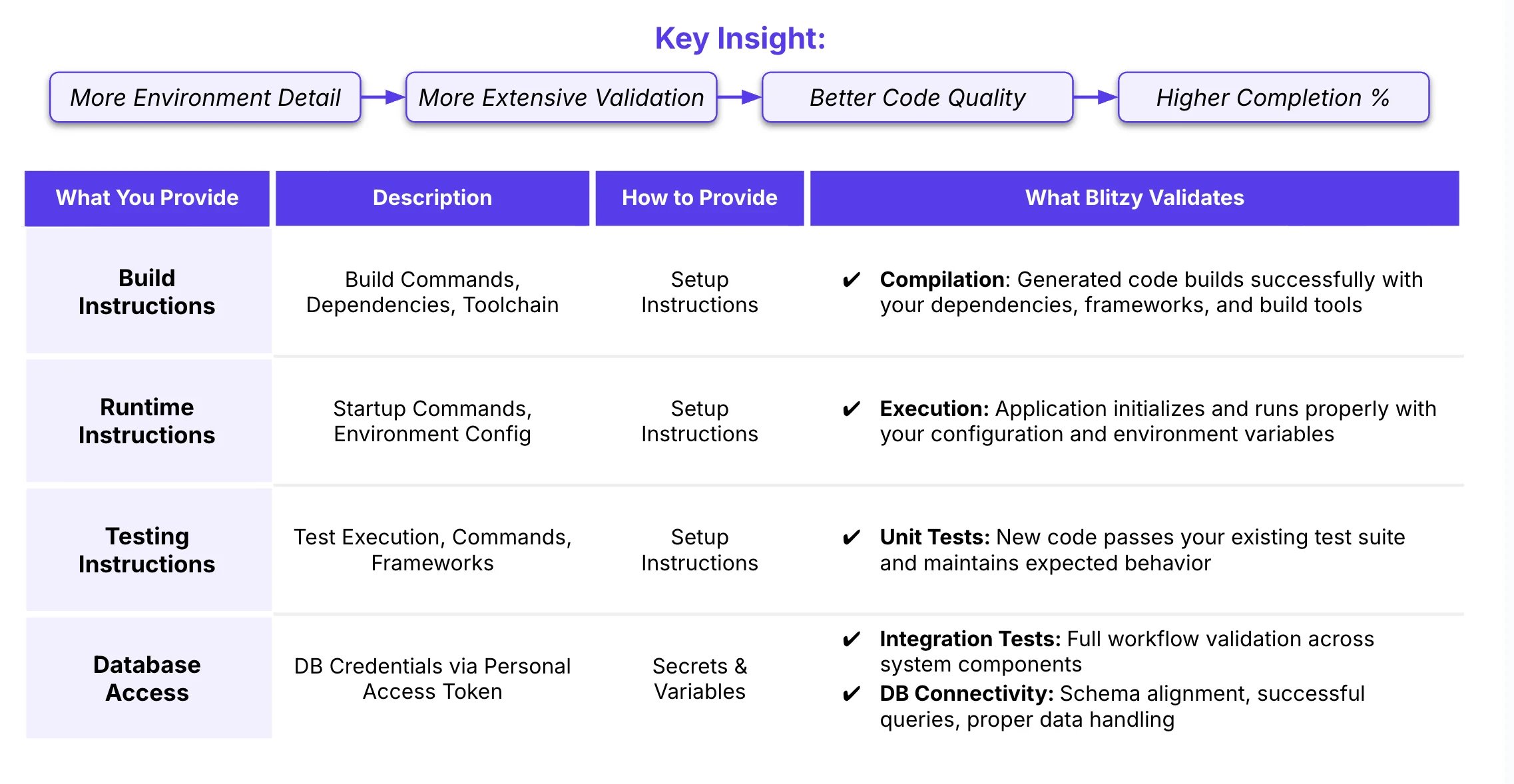
Setup Instructions
Your setup instructions should provide a complete, unambiguous path from a fresh environment to a running application. Write them in natural language. Blitzy’s agents interpret plain-English instructions, not just shell scripts.What to Include
Required Toolchain & Runtime
Required Toolchain & Runtime
- Runtime and language version (e.g., Node.js 20, Java 21, Python 3.12)
- Build tools and package managers (e.g., Maven 3.9, npm, Make)
- Database systems needed for testing (e.g., PostgreSQL 15, MongoDB 7.0)
- Container runtime if applicable (e.g., Docker Desktop)
Authentication & Access
Authentication & Access
- Cloud credential setup (service account keys, credential files)
- Internal package registries or artifact repositories
- How to authenticate (PAT, service accounts, credential files)
- Where credential files should be placed (e.g.,
~/.m2/settings.xml,.npmrc) - UI login credentials for applications gated by a login screen (see warning below)
Build & Run Commands
Build & Run Commands
- Exact commands to install dependencies
- Build commands with any required flags
- Database migration or initialization steps
- Commands to start the application
- How to run tests (if applicable)
File-Based Configuration
File-Based Configuration
- Configuration files required (e.g.,
.env.local,application.yml) - Where these files must be located
- Which secrets or variables they reference
Environment Variable Special Handling
Environment Variable Special Handling
- Variables that need aliasing or renaming at runtime
- Variables that should NOT be set globally (only per-command)
- Service URL overrides or internal routing rules
Example Setup Instructions
The example below demonstrates a multi-service project with natural-language setup instructions, the format Blitzy works best with.Variables & Secrets
What’s the Difference?
- Variables - Non-sensitive configuration (e.g.,
NODE_ENV=production, feature flags, public endpoints). Stored as plaintext. - Secrets - Sensitive credentials (e.g., database passwords, API keys, service account keys). Encrypted at rest, masked in all logs, and never sent to AI agents.
Configuration Examples
How Secrets Work
- Canonical Secret Names - Define secret references (e.g.,
${DB_PASSWORD}) in your setup instructions or configuration files. - Encrypted Storage - Actual secret values are stored encrypted and only accessible to authorized users.
- Masked Logs - Any secret value that appears in logs is automatically replaced with
***REDACTED***. - Not Sent to AI - Secrets are never included in prompts or sent to AI models. The AI only sees the reference names (e.g.,
${DB_PASSWORD}).
UI Login Credentials for Auth-Gated Applications
Include test credentials as secrets in your environment configuration. At minimum, provide:- Username / email and password for a test account with access to all relevant screens
- MFA workarounds if applicable (e.g., a test account with MFA disabled)
- Role-specific credentials if different roles have different UI views that need testing
Best Practices
- Be Explicit - Assume the reader has never seen your codebase. Specify versions, paths, and commands precisely.
- Use Natural Language - Write instructions the way you would explain them to a new teammate. Blitzy interprets plain English, not just shell commands.
- Call Out Gotchas - If a variable must not be exported globally, or a command needs a specific env var set inline, say so explicitly.
- Reference Variables and Secrets Correctly - Use
${VARIABLE_NAME}syntax for both variables and secrets so Blitzy can substitute values at runtime. - Test Your Instructions - The best way to validate setup instructions is to follow them yourself on a clean machine or container.
- Document Assumptions - If your build assumes certain tools are installed or services are running, state that clearly.
Getting Started
1
Navigate to Settings > Environments
Open your Blitzy dashboard and go to the Environments section.
2
Create a New Environment
Create an environment for your target (Development, Staging, Production).
3
Add Setup Instructions
Write natural-language build and run instructions following the patterns above.
4
Configure Variables & Secrets
Add non-sensitive variables as plaintext and sensitive credentials as encrypted secrets.
5
Save and Test
Save the configuration and click Test Setup to validate it. See the Environment Testing guide for details on what the test checks and how to interpret the results.
When beginning Blitzy Projects, you will be prompted to attach the appropriate environment(s) during project setup.
Windows desktop validation: If your project uses Computer Use on Windows to visually validate a desktop application, you need a Windows environment with UI login credentials and desktop-specific setup instructions. See Computer Use on Windows for details.
Multiple Environments
A project can use more than one environment. Each environment is assigned a position, where position 1 is the highest priority. When a build runs, environments are merged using these rules:Recommended Pattern
Do You Need a New Environment?
Troubleshooting
Build fails with 'variable not found'
Build fails with 'variable not found'
Cause: Environment not attached to the project, or sync has not completed.Fix: Check Project Settings to verify the environment is attached. Wait 60 seconds and retry - the sync may still be in progress.
Variables from a lower-priority environment are ignored
Variables from a lower-priority environment are ignored
Cause: A higher-priority environment already defines the same key (first-writer wins).Fix: Check the variable names across all attached environments. Rename or remove the duplicate in the higher-priority environment.
Build uses the wrong OS
Build uses the wrong OS
Cause:
target_os is always taken from the position-1 environment.Fix: Move the environment with the correct OS to position 1.Environment not visible in the project dropdown
Environment not visible in the project dropdown
Cause: Environments require explicit or team-based sharing.Fix: Ask the environment owner to share it with you or your team via Settings > Environments.
Related Guides
Environment Testing
Validate your environment before starting code generation
Teams & Roles
Role-based access control for environments
Project Setup
Connect environments to projects
Computer Use on Windows
Visual validation using Windows desktop interaction