

Viewing Connected Integrations
Access all your connected integrations from Settings > Integrations in your Blitzy dashboard. Here you can:- View the status of each integration
- See which repositories and projects are accessible
- Manage permissions and access levels
- Disconnect integrations when no longer needed
Sharing Integrations with Teams
1
Open Integrations
Navigate to Settings > Integrations.
2
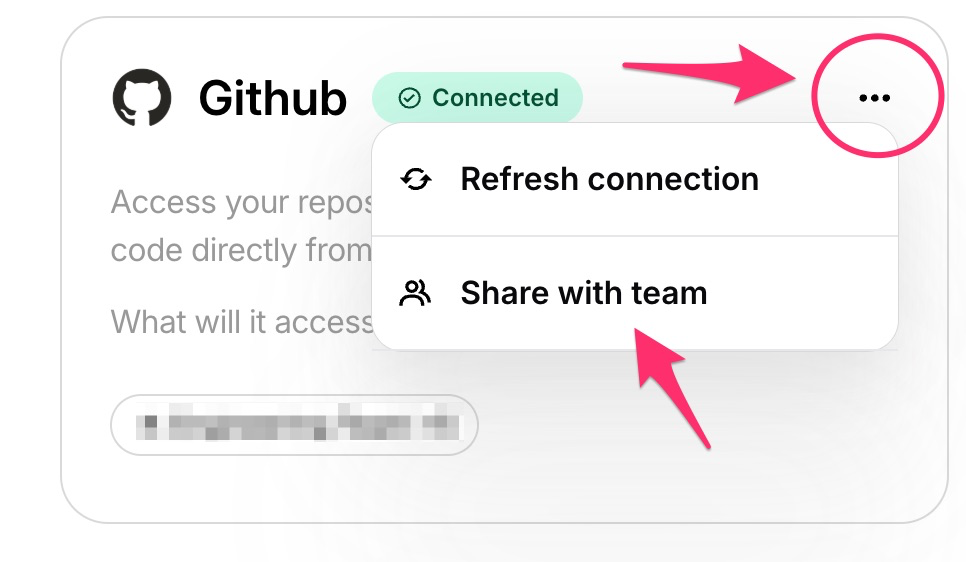
Open sharing menu
Click the three dots on the upper right corner of the integration you want to share.
3
Share
Click Share with Team, select the team(s), and confirm.
Only users with Admin or Super Admin roles can share integrations with teams. See Teams & Roles for more information about permissions.
Disconnecting Integrations
- Navigate to Settings > Integrations
- Click Manage next to the integration
- Click Disconnect
- Confirm the disconnection
To disconnect an Azure DevOps integration, the disconnection action must be taken from within Azure DevOps itself. Navigate to your Azure DevOps organization settings and revoke Blitzy’s access authorization.