> ## Documentation Index
> Fetch the complete documentation index at: https://docs.blitzy.com/llms.txt
> Use this file to discover all available pages before exploring further.
# Single Sign-On (SSO)
> Configure Enterprise Single Sign-On for your organization through domain verification and identity provider setup
Blitzy supports Enterprise Single Sign-On (SSO), allowing your organization to authenticate users through your existing Identity Provider (IdP) - Okta, Microsoft Entra ID, Google Workspace, or any other SAML-compatible provider.
**Jump to:** [Before You Begin](#before-you-begin) | [Domain Verification](#step-1-domain-verification) | [IdP Configuration](#step-2-identity-provider-idp-configuration) | [Troubleshooting](#troubleshooting)
Setting up SSO requires two steps, typically performed by two different administrators:
| Step | Who performs it | What it involves |
| --------------------------------------------------------------------------------- | --------------------------- | ---------------------------------------- |
| [1. Domain Verification](#step-1-domain-verification) | DNS Administrator | Adding a TXT record to your DNS settings |
| [2. Identity Provider Configuration](#step-2-identity-provider-idp-configuration) | Security / IT Administrator | Granting Blitzy access to your IdP |
**Already signing in with Microsoft?** No immediate action is required. Continue signing in as usual. However, completing the SSO setup below provides stronger security and a more seamless login experience for your organization.
## Before You Begin
* **Super Admin access** - Required in Blitzy to initiate the setup
* **DNS Administrator** - Needed for Step 1 to add a record to your domain's DNS settings. This is a minor, non-disruptive change.
* **Security or IT Administrator** - Needed for Step 2 to configure your Identity Provider
## Step 1: Domain Verification
Domain verification proves to Blitzy that your organization owns the domain used for employee email addresses (e.g., `yourcompany.com`). This is a one-time step performed by your DNS Administrator.
Navigate to **Settings** by clicking the **gear icon** in the top-right corner of your workspace. Select the **Authentication** tab.
In the **Domain Verification** section, click **Verify**.
This step should be performed by a Super Admin.
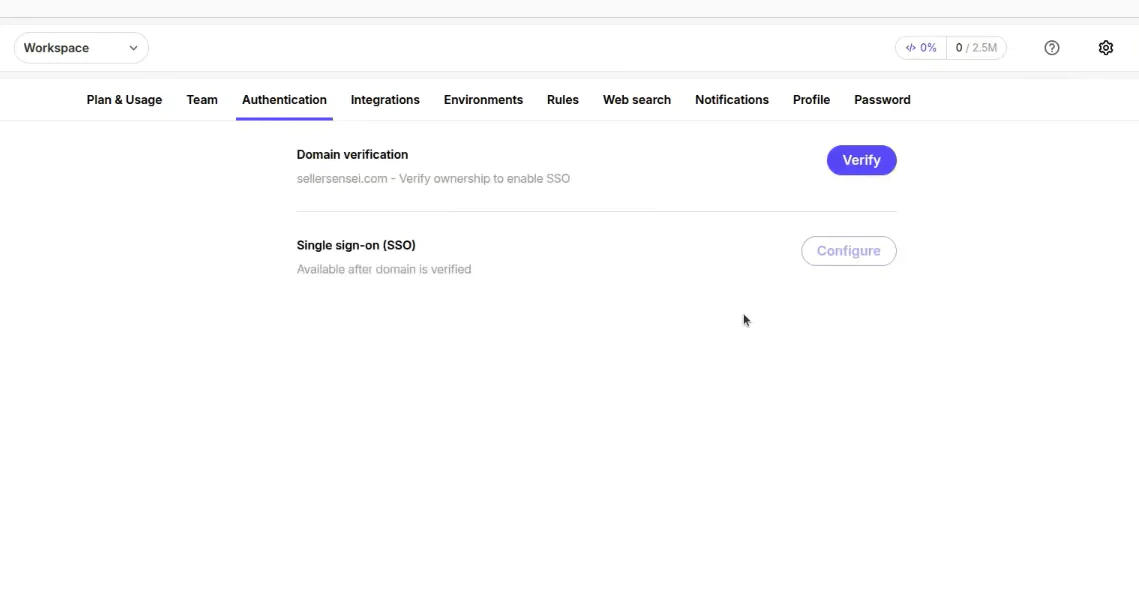 Enter your organization's domain. Blitzy generates a **TXT record** that your DNS Administrator must add to your domain's DNS settings.
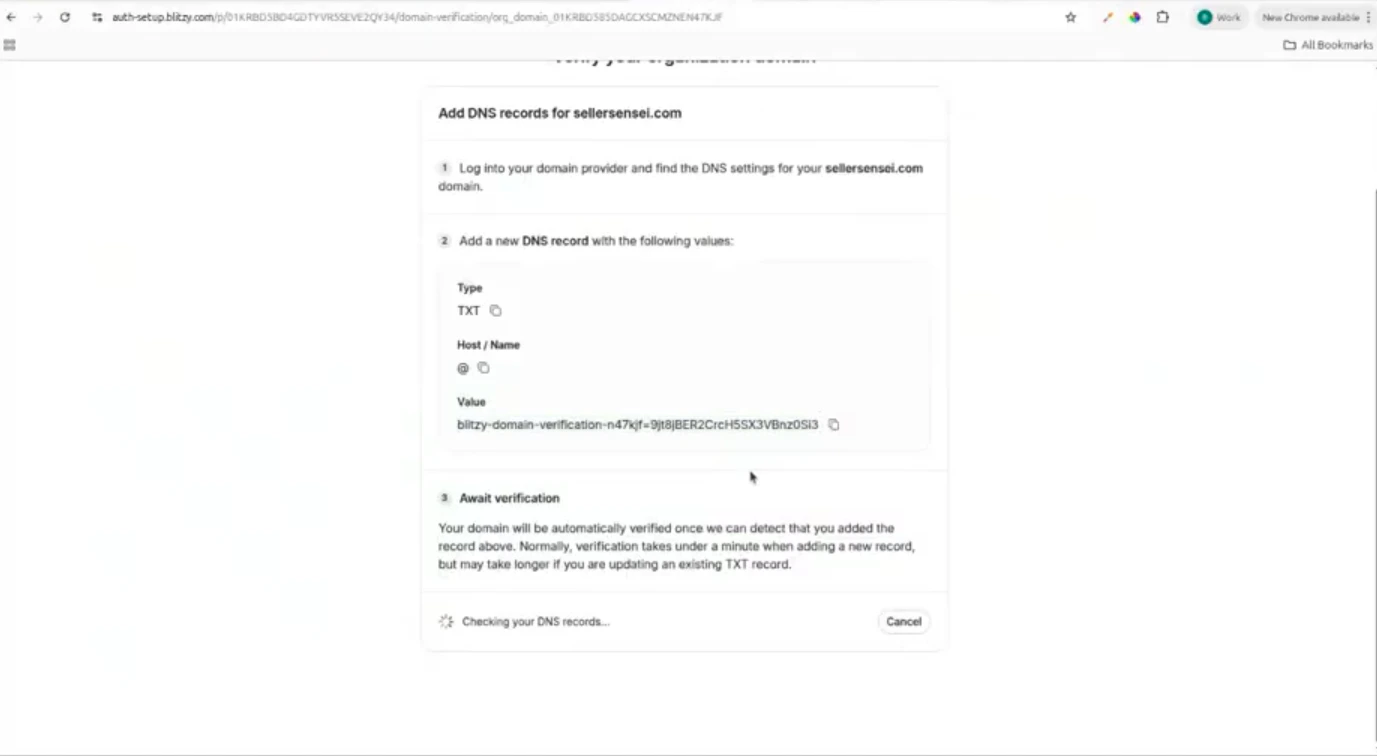
Provide this TXT record to your DNS Administrator. They will add it in your DNS provider's control panel (e.g., Cloudflare, Route 53, GoDaddy).
Enter your organization's domain. Blitzy generates a **TXT record** that your DNS Administrator must add to your domain's DNS settings.
Provide this TXT record to your DNS Administrator. They will add it in your DNS provider's control panel (e.g., Cloudflare, Route 53, GoDaddy).
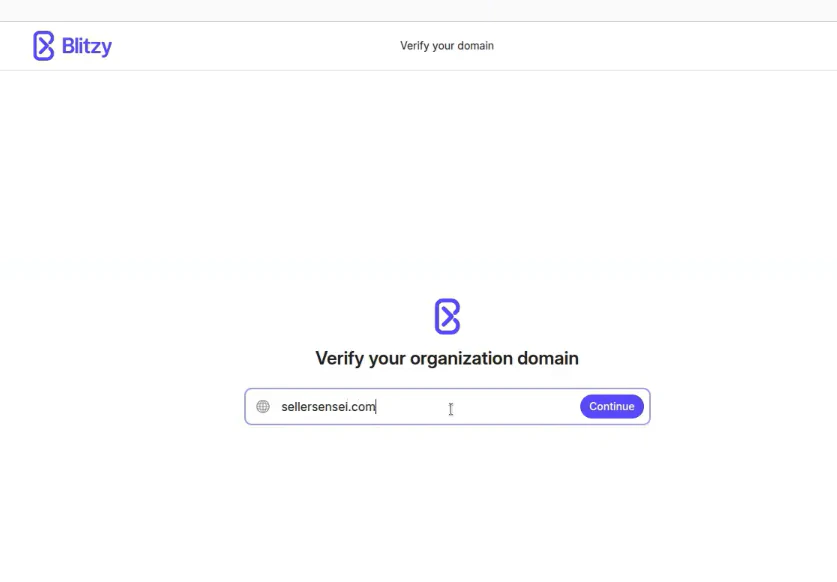 DNS propagation can take up to **48 hours**. The verification process runs automatically in the background - no action is needed during this time.
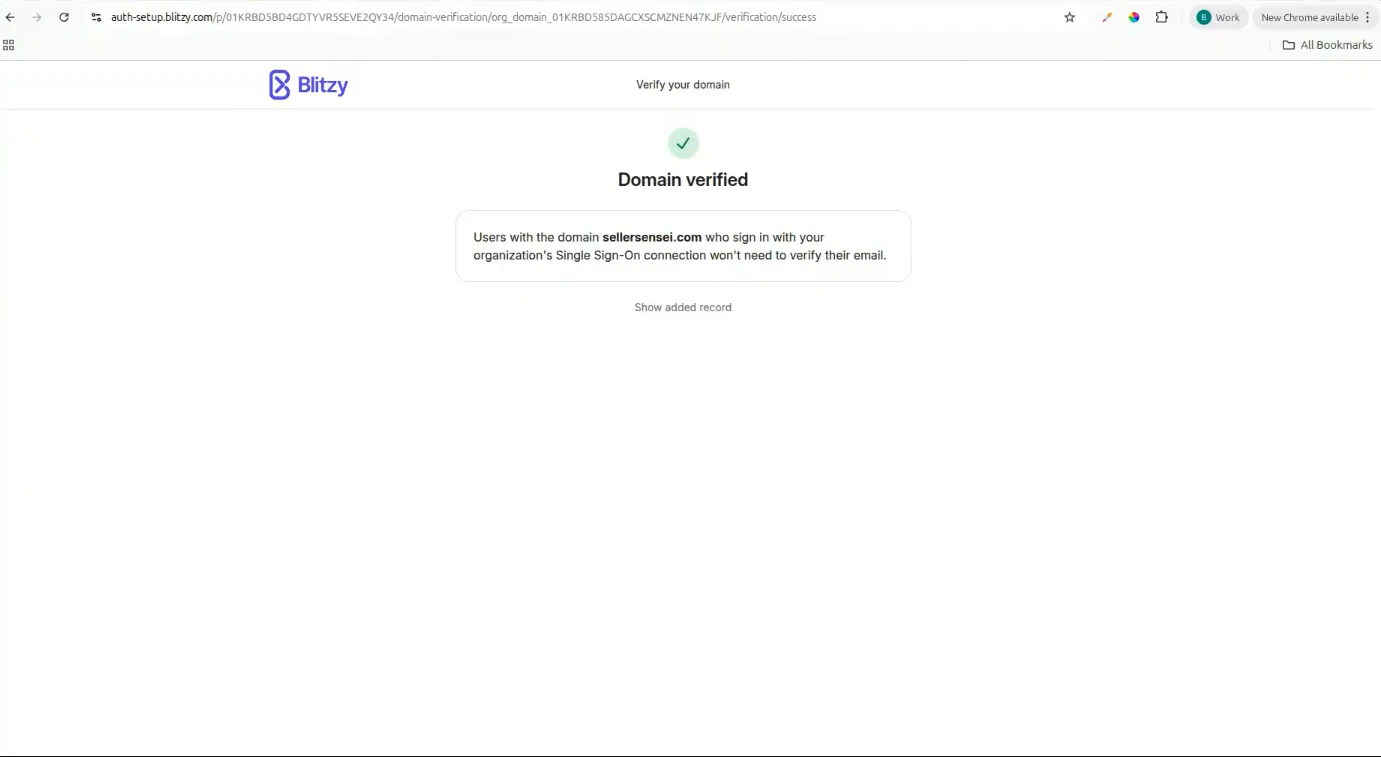
 Once validated, a success message appears. Return to the Blitzy platform to confirm the domain shows as verified.
 ## Step 2: Identity Provider (IdP) Configuration
Once your domain is verified, a Security or IT Administrator can connect your Identity Provider to enable SSO login for your organization.
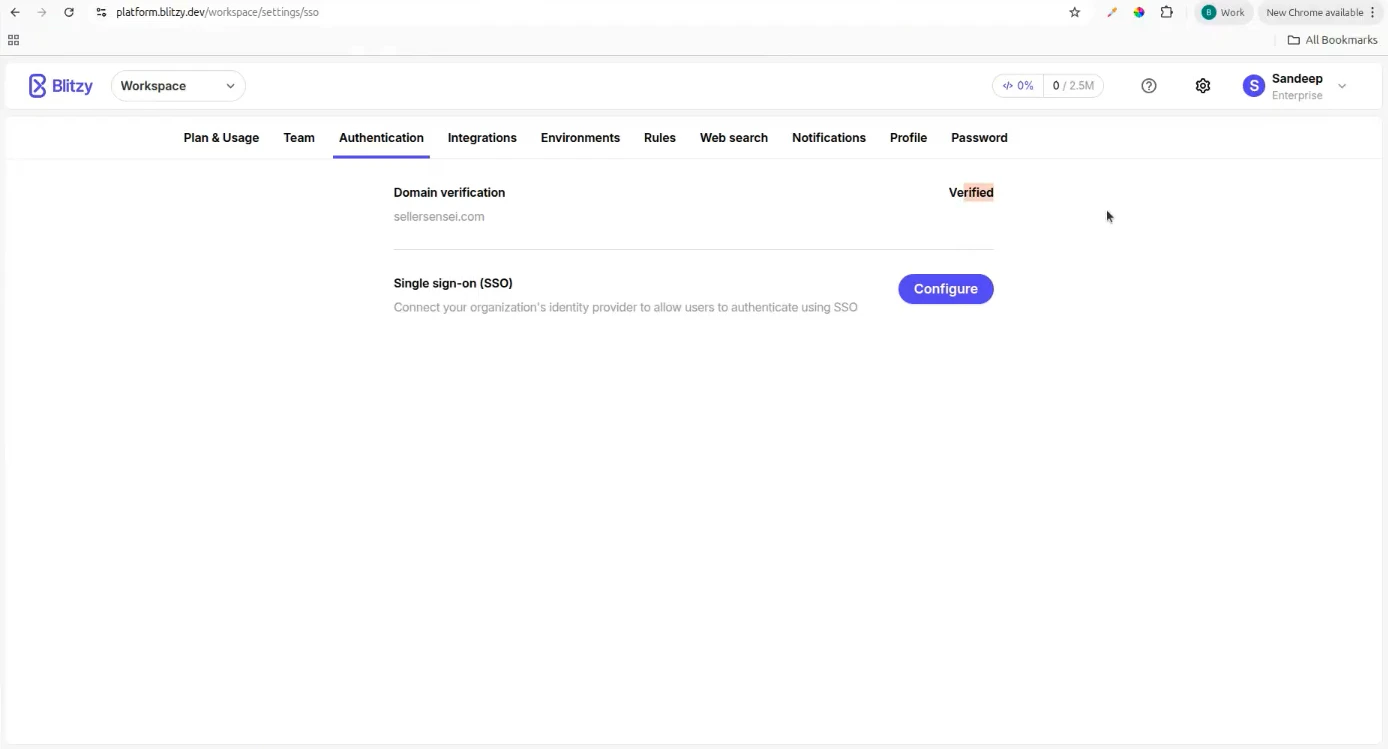
From the **Authentication** settings page, click **Configure** in the Single Sign-On section.
## Step 2: Identity Provider (IdP) Configuration
Once your domain is verified, a Security or IT Administrator can connect your Identity Provider to enable SSO login for your organization.
From the **Authentication** settings page, click **Configure** in the Single Sign-On section.
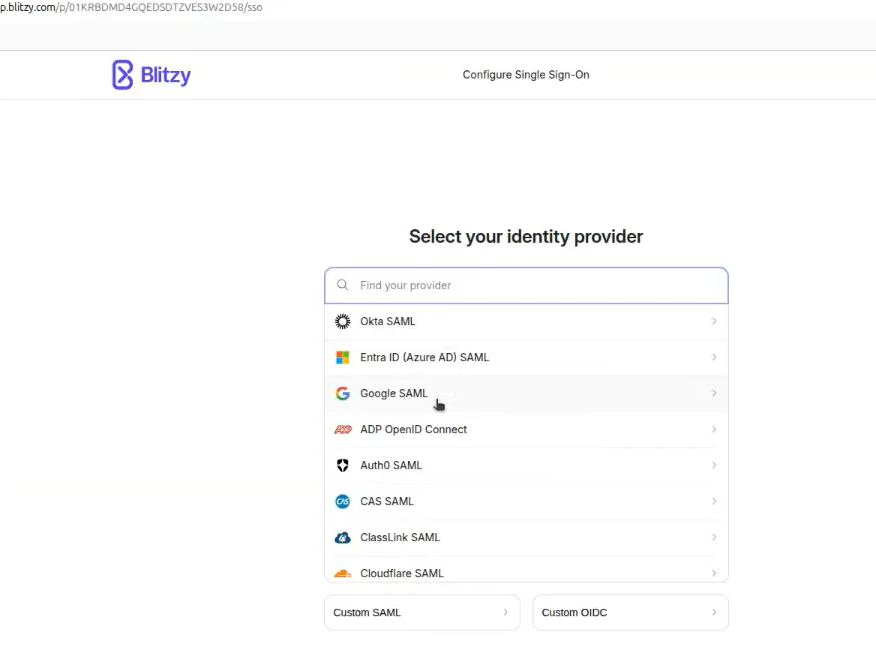
 Choose your organization's Identity Provider from the list. Supported providers include Okta, Microsoft Entra ID (Azure AD), Google Workspace, OneLogin, and others.
After selecting your provider, Blitzy displays setup instructions tailored to that specific IdP.
Choose your organization's Identity Provider from the list. Supported providers include Okta, Microsoft Entra ID (Azure AD), Google Workspace, OneLogin, and others.
After selecting your provider, Blitzy displays setup instructions tailored to that specific IdP.
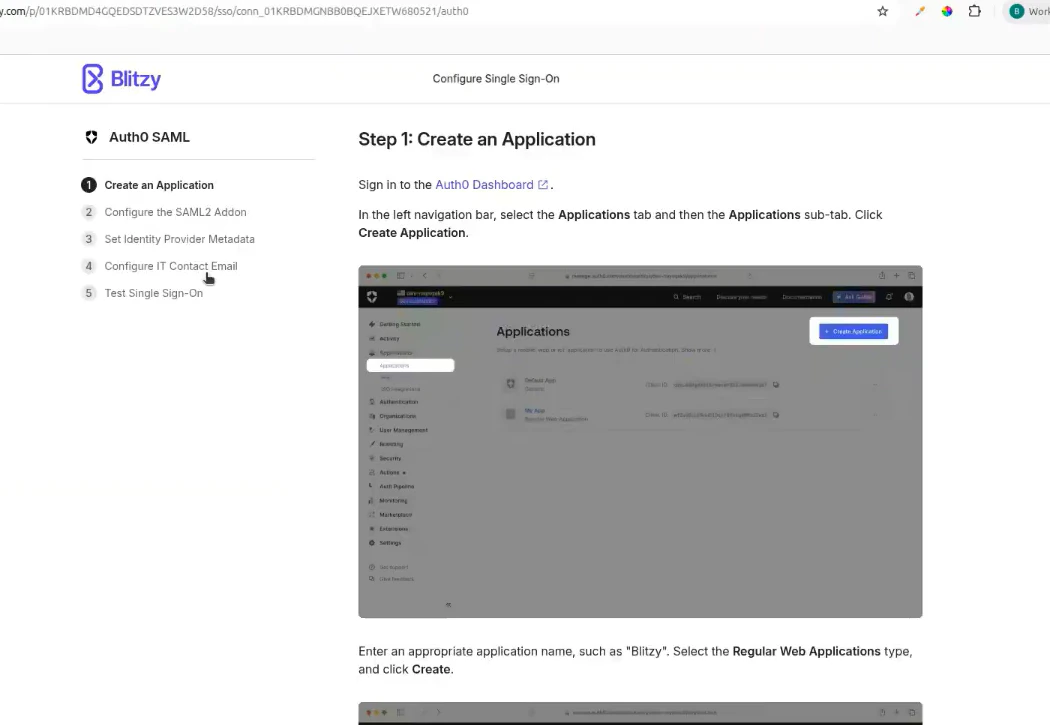
 Follow the step-by-step instructions shown on screen. These instructions are specific to your chosen provider and walk you and your IdP administrator through all required configuration steps.
Keep Blitzy and your IdP's admin console open in separate browser tabs - you will be copying values between them.
Follow the step-by-step instructions shown on screen. These instructions are specific to your chosen provider and walk you and your IdP administrator through all required configuration steps.
Keep Blitzy and your IdP's admin console open in separate browser tabs - you will be copying values between them.
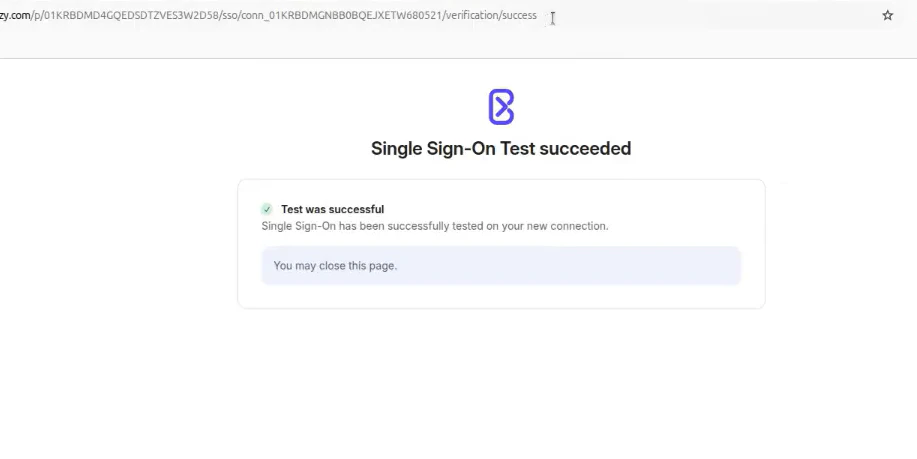
 After completing the configuration, use the **Test Connection** option to verify SSO is working correctly before rolling it out to your organization.
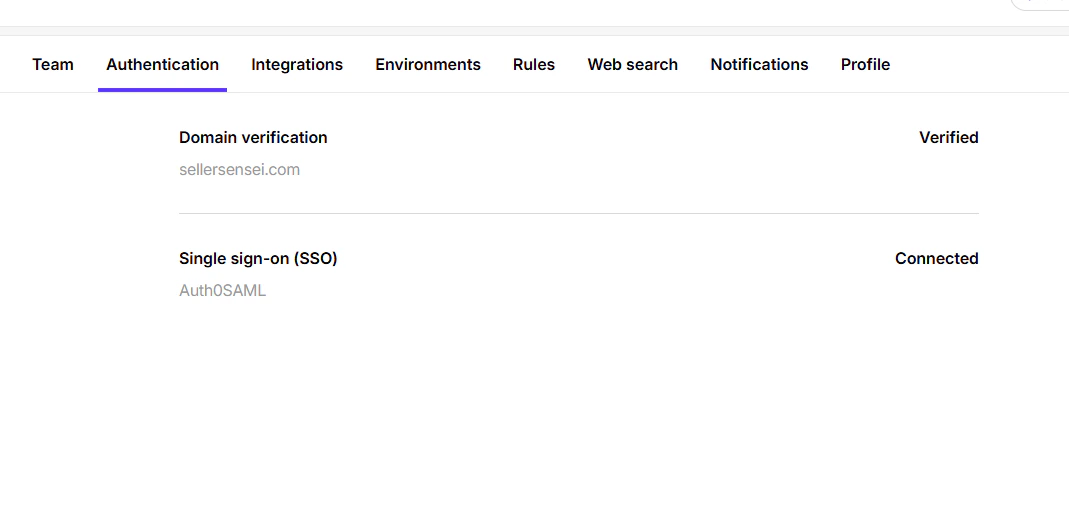
 Return to the **Authentication** settings page. The updated status confirms SSO is active.
 ## Troubleshooting
DNS propagation can take up to 48 hours depending on your DNS provider and TTL settings. If verification has not completed after 48 hours, confirm the TXT record was added correctly and contact [support@blitzy.com](mailto:support@blitzy.com).
Blitzy supports any SAML 2.0-compatible Identity Provider. If your provider is not listed, select **Custom SAML** and follow the instructions, or reach out to [support@blitzy.com](mailto:support@blitzy.com) for assistance.
Double-check that all values (ACS URL, Entity ID, etc.) were copied accurately between Blitzy and your IdP. Even a small typo causes the connection to fail. If the issue persists, contact your IdP administrator or reach out to Blitzy support.
### Getting Help
Contact [support@blitzy.com](mailto:support@blitzy.com) or reach out to your Blitzy account representative.
Manage teams and member access
Configure environments for AI-Native development
## Troubleshooting
DNS propagation can take up to 48 hours depending on your DNS provider and TTL settings. If verification has not completed after 48 hours, confirm the TXT record was added correctly and contact [support@blitzy.com](mailto:support@blitzy.com).
Blitzy supports any SAML 2.0-compatible Identity Provider. If your provider is not listed, select **Custom SAML** and follow the instructions, or reach out to [support@blitzy.com](mailto:support@blitzy.com) for assistance.
Double-check that all values (ACS URL, Entity ID, etc.) were copied accurately between Blitzy and your IdP. Even a small typo causes the connection to fail. If the issue persists, contact your IdP administrator or reach out to Blitzy support.
### Getting Help
Contact [support@blitzy.com](mailto:support@blitzy.com) or reach out to your Blitzy account representative.
Manage teams and member access
Configure environments for AI-Native development